
When you move house or clear out a storeroom, the boxes pile up fast. What went into each one is only obvious while you are packing it. Once the tape is on, the memory fades, and finding one thing means opening box after box.
Placery — 제자리 in Korean — is an Android app built to cut that work down. You note things as they go into a box, put a QR label on the box, and later find them again by scanning the label or searching. The first version opens as a Google Play closed test.
This is a record of rebuilding the previous app from scratch: what we kept, and what we changed.
It started with an earlier app
Placery grew out of an earlier app called MoveInventory. Over its 1.x versions it gained printing several labels on one sticker sheet, printer calibration with a sheet of four QR markers, and a camera scanner that reads labels.
In October 2026 we started rebuilding the app from scratch in Kotlin and Jetpack Compose. Rather than copying the feature list across, we asked again what effort people actually spend while they pack, move and look for their things. The new name, 제자리 — Placery in English — came out of that work.
A name is enough to save
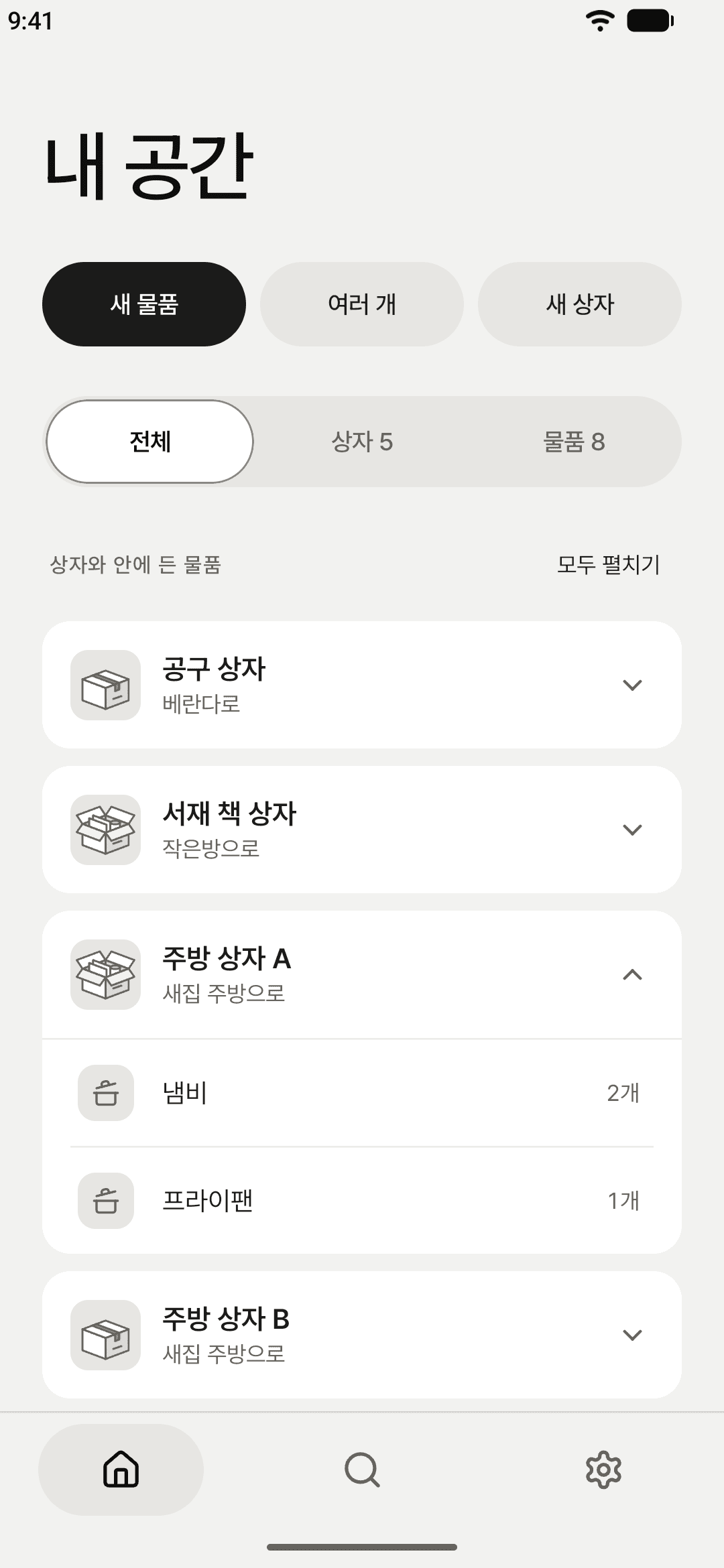
The first thing we cut was typing. Type a name and the item is saved; quantity and unit, category and memo are there when you need them. To add many at once, write one name per line; a number at the end of a line becomes its quantity. Not asking a first-time user to fill in every field is where Lunive's idea of a good default starts.
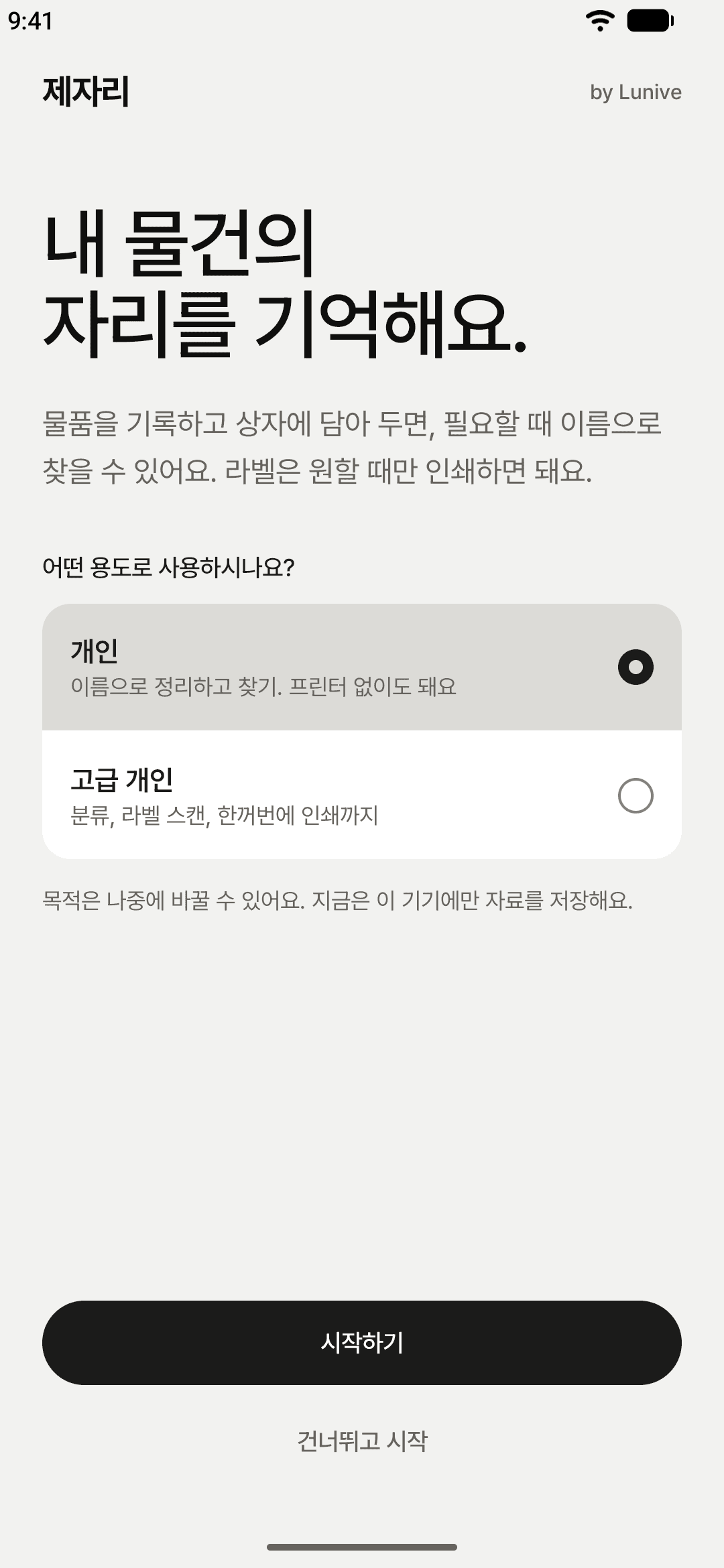
The purpose choice comes from the same thinking. When you start, you can pick personal or advanced personal, and only the tabs and features that purpose needs are shown. Neither is an account type or a plan; they set how deep the screens go. Someone sorting the storage boxes at home and someone managing thousands of items need different depths of features. You can skip the choice, and later turn each feature on or off in Settings.
Labels should work by default
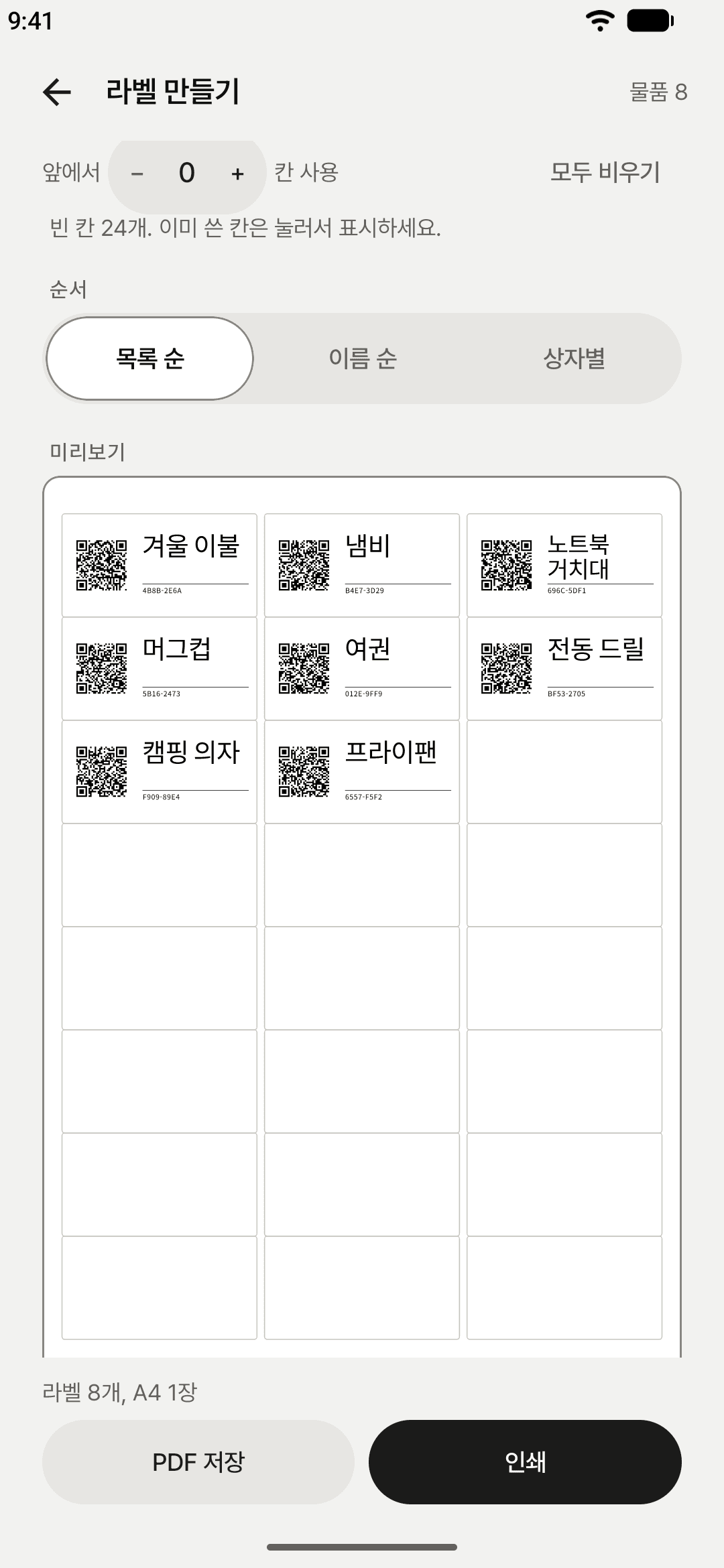
The key to finding a box again is its label. Placery makes a label with a QR code, the name and a short code for every box and item, and prints them on A4 sticker sheets or continuous labels, or saves a PDF. We made the default a label you can stick on without editing anything.
We rebuilt the label engine once. The first build of the new app made one label at a time, in one size — the sticker-sheet printing the previous app had was missing. So we wrote a new engine that lays several labels out on one sheet and makes labels for many items in one go.
We reworked the label layout once more. In the preview, the QR code filled almost the whole cell and the name was printed so small it was hard to read. Now the QR code sits on the left, the name is set as large as the cell allows next to it, and a thin rule and the short code run underneath.
Every printer lands a little off. Calibration handles that: print a calibration sheet once and photograph it, and Placery corrects the position for that printer from the next print on.
Scan a box, see inside
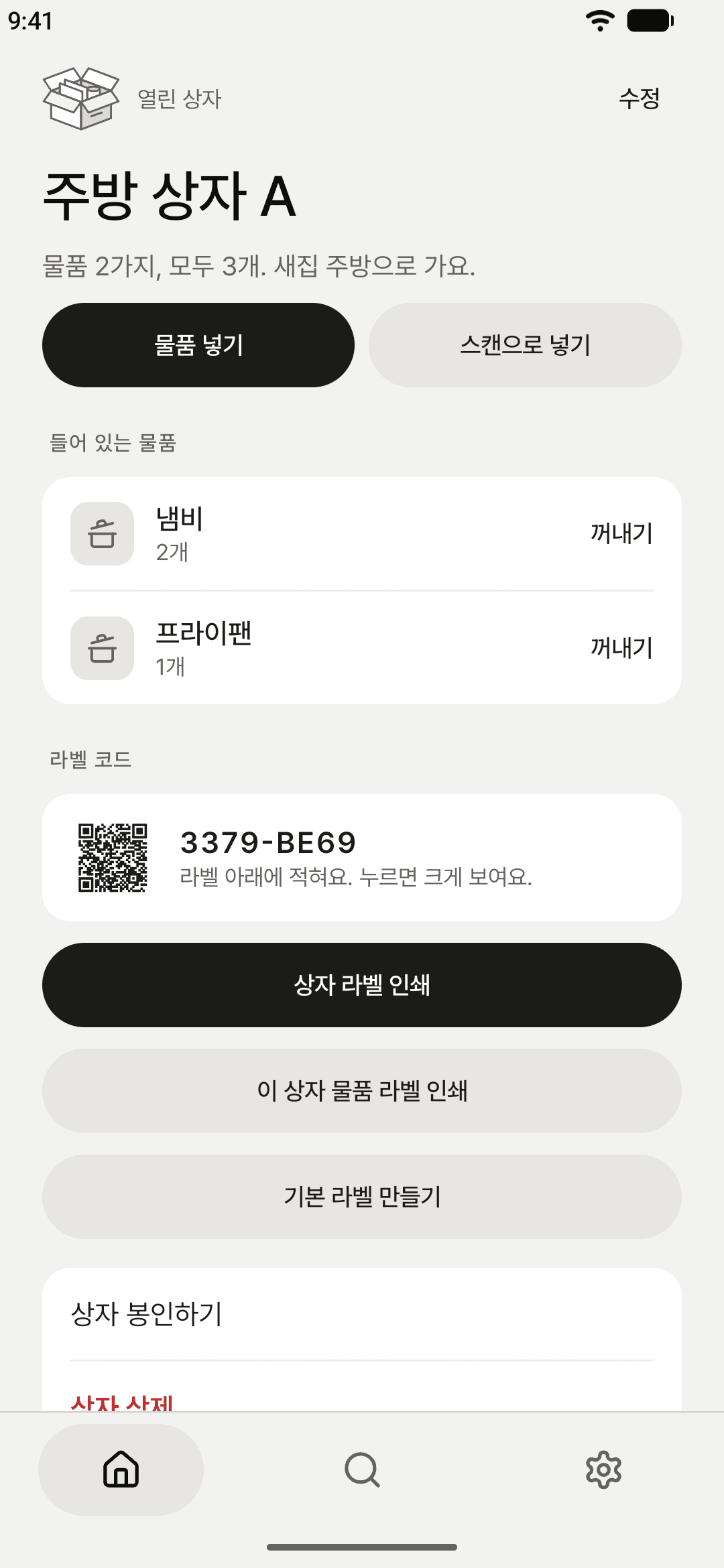
Point the camera at the label on a box and the box and everything in it come up at once. When packing, you can scan the box label and then each item label as you go, and seal a box once it is full so nothing else goes in by mistake. You can also search by name or label code, and long-press an entry in the list to change its quantity, move it to another box, take it out, seal it or delete it, right where you are.
The scanner was missing at first, too. The previous app had it, and we noticed during review that the new one had lost it, so we brought it back. Camera frames are analysed on the device straight away; no video or photo is stored.
Motion is part of the experience
Screen transitions and selections are built on physics-based spring animation. Tap again or change direction mid-motion, and it carries on from where it is instead of starting over.
Review changed a few things. When choosing a purpose, a box used to slide between the options; now the choice is highlighted in place. Theme changes that stuttered were smoothed out, and the rubber-band bounce at the end of a scroll went back to Android's own edge behaviour. If motion bothers you, you can turn screen motion off in Settings.
No account, no server
Placery needs no sign-up and has no ads or analytics. All data lives in the app's private storage on the device, and the only permission the first version asks for is the camera. It does not ask for internet access.
That was not the plan from the start. Early in the rebuild we also considered signing in with a Google account and backing up automatically to the user's Google Drive. In the end, the first version keeps everything on the device, with no account. Because we receive no data, the promises we have to keep are clear, and they are written down in the Privacy Policy.
Backups happen on the device once a day. You can export a backup file and lock it with a password, and import a backup from the previous app (MoveInventory 1.9) to bring your existing data across.
What's next
We plan to listen to the people who try it in the closed test, polish it, and then release it publicly. A way for your own devices on the same Wi-Fi to keep one list in sync, with no server, is being prepared for the next version.
For help with the app, write to support@lunive.app.